Back to guides
Holiday hours per professional
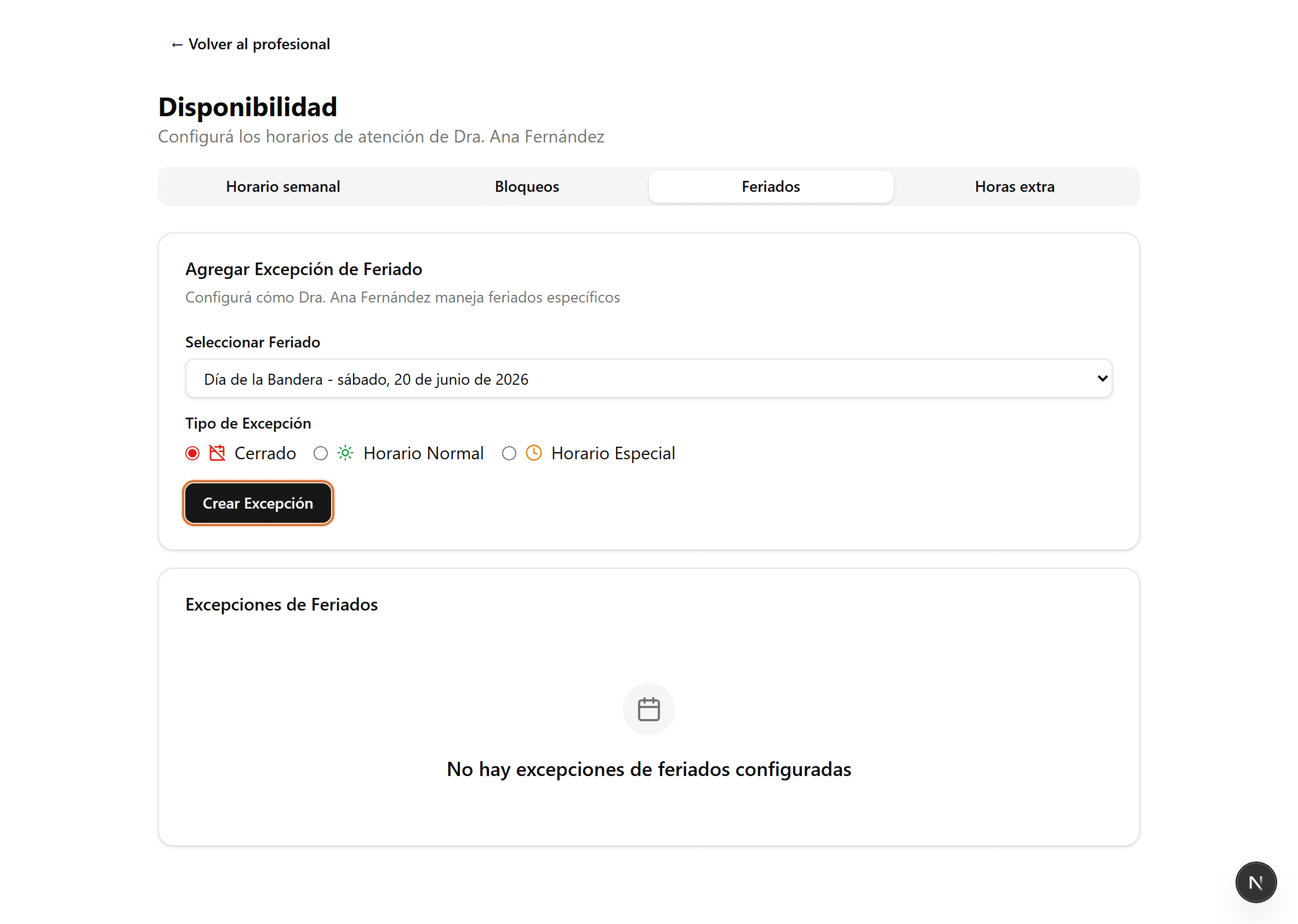
You only need this when a holiday is set for the whole organization but this professional will still work that day. To create a holiday, follow the Organization holidays guide.
- 1
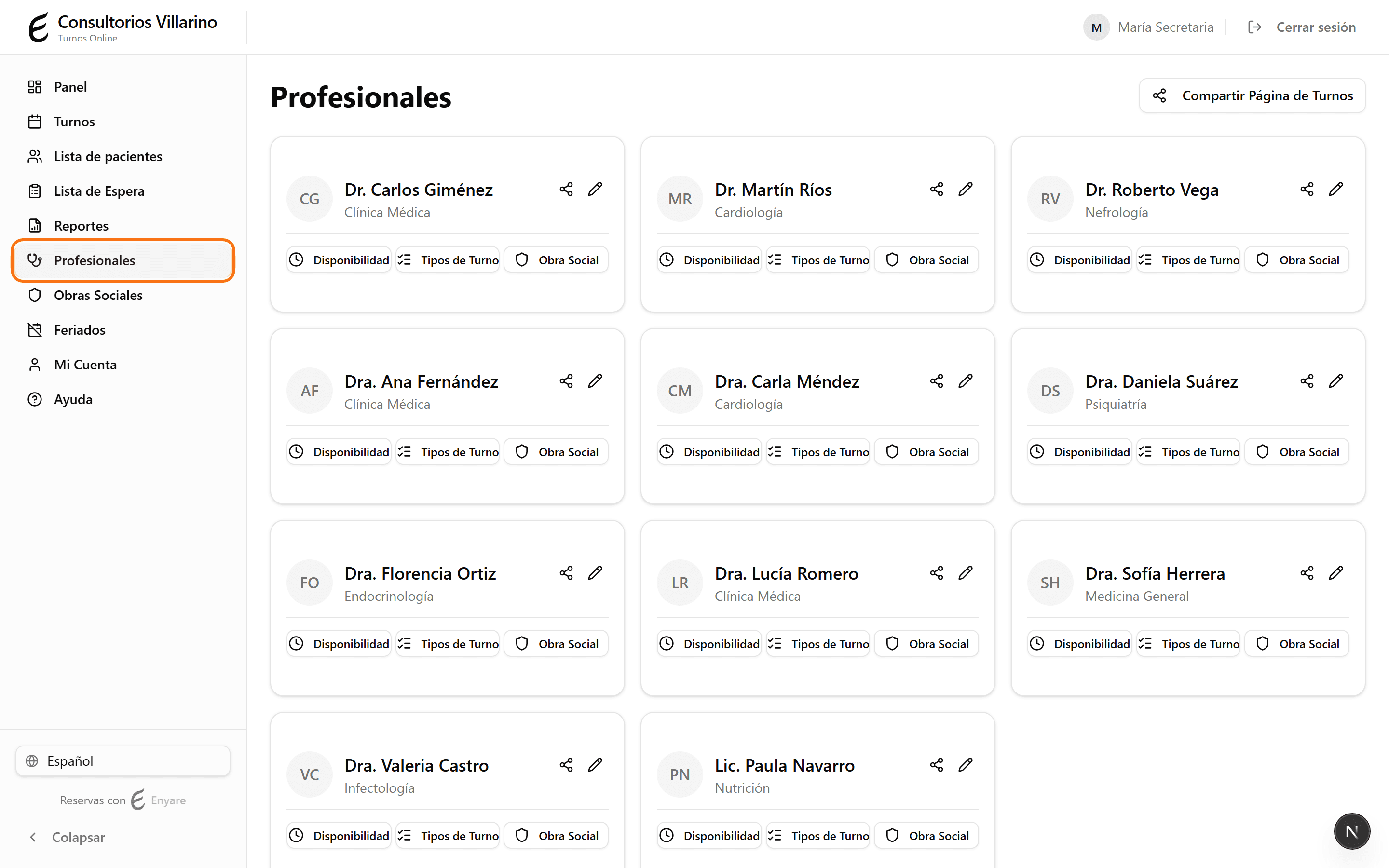
Open “Availability” and the “Holidays” tab
In the sidebar, open “Professionals”, go into the professional, click “Availability” and choose the “Holidays” tab.
- 2
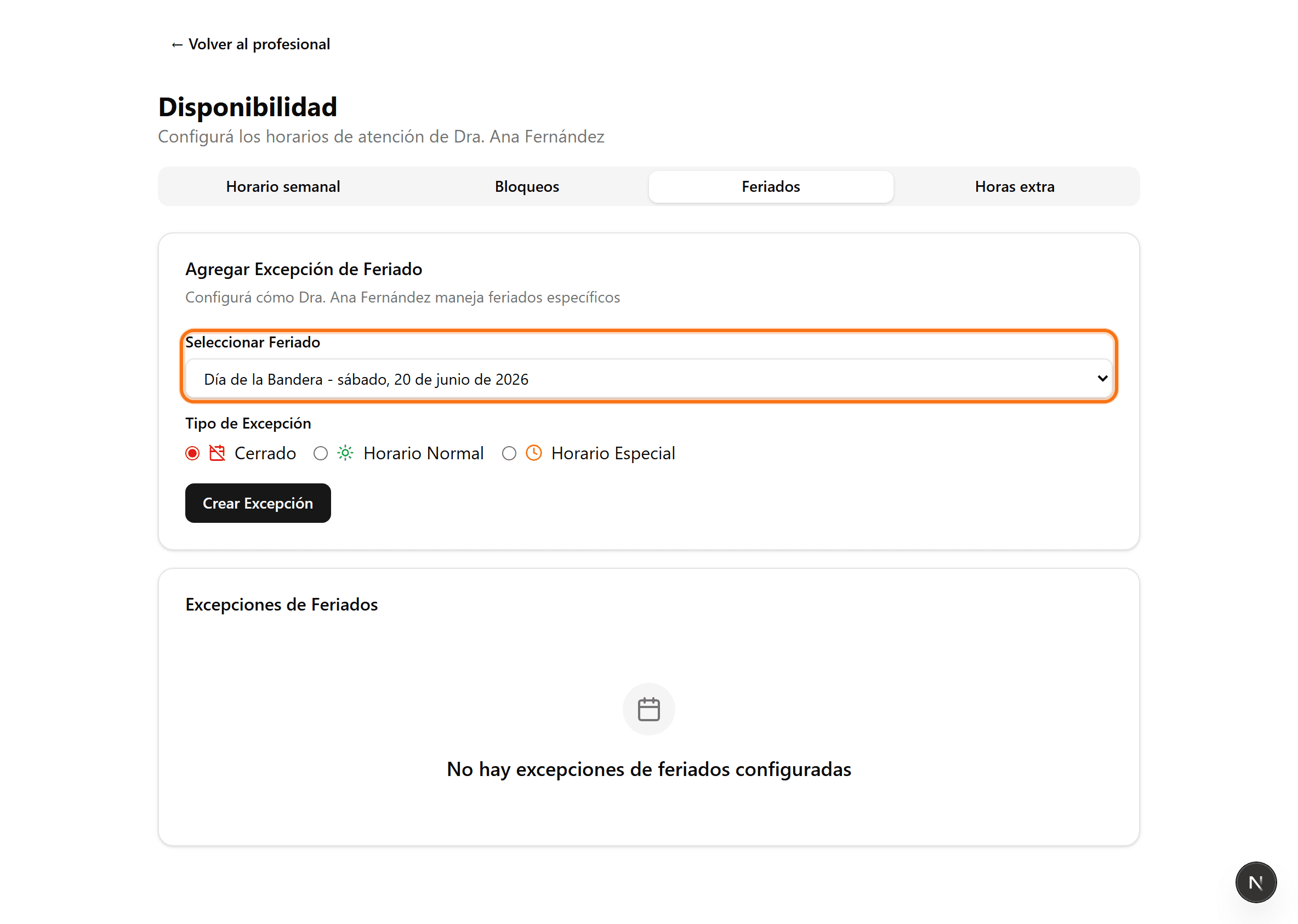
Pick the holiday
Under “Select holiday”, choose one of the upcoming calendar holidays. Only future holidays that don't already have an exception appear.
- 3
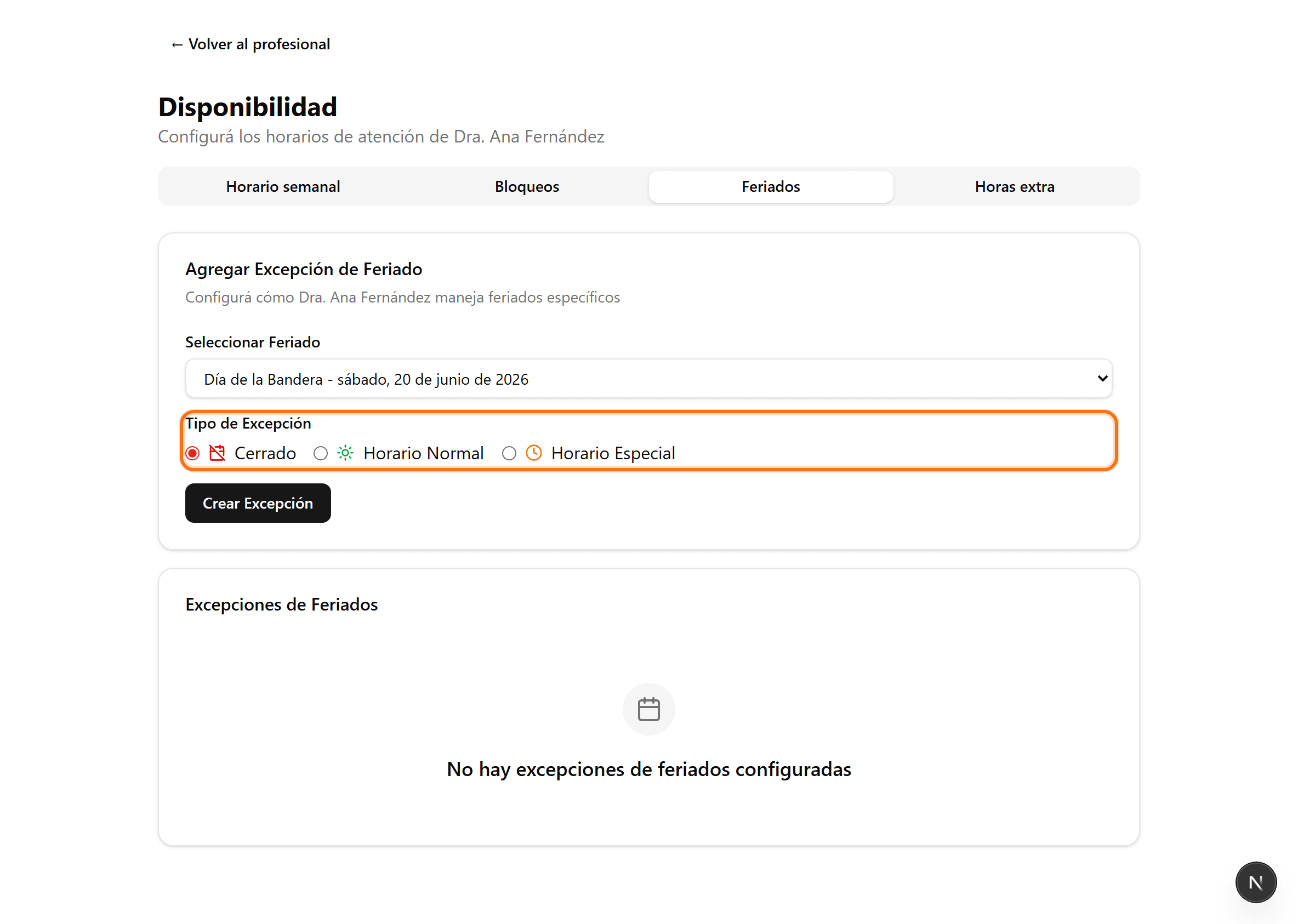
Choose how they work that day
“Closed”: no appointments on the holiday. “Normal hours”: works the usual schedule. “Special hours”: works a different range, where you set the open and close time.
- 4
Create the exception
Click “Create exception”. It shows up under “Holiday exceptions” and you can remove it anytime.