Volver a las guías
Crear y modificar tipos de turno
- 1
Abrí «Tipos de Turno» del profesional
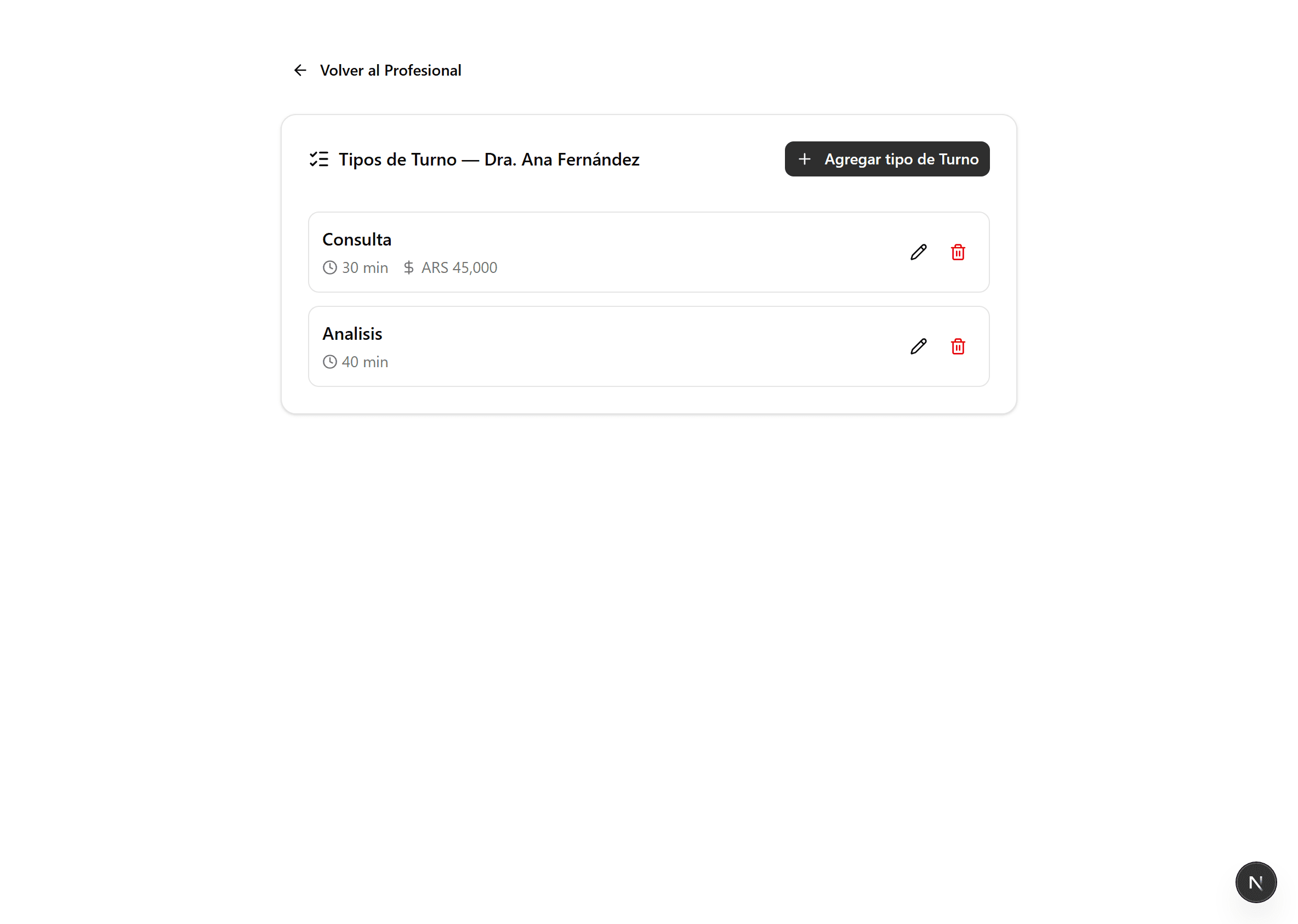
En «Profesionales», en la tarjeta del profesional, hacé clic en «Tipos de Turno». Vas a ver los tipos de turno cargados (por ejemplo Primera vez, Consulta, Control).
- 2
Agregá un tipo de turno
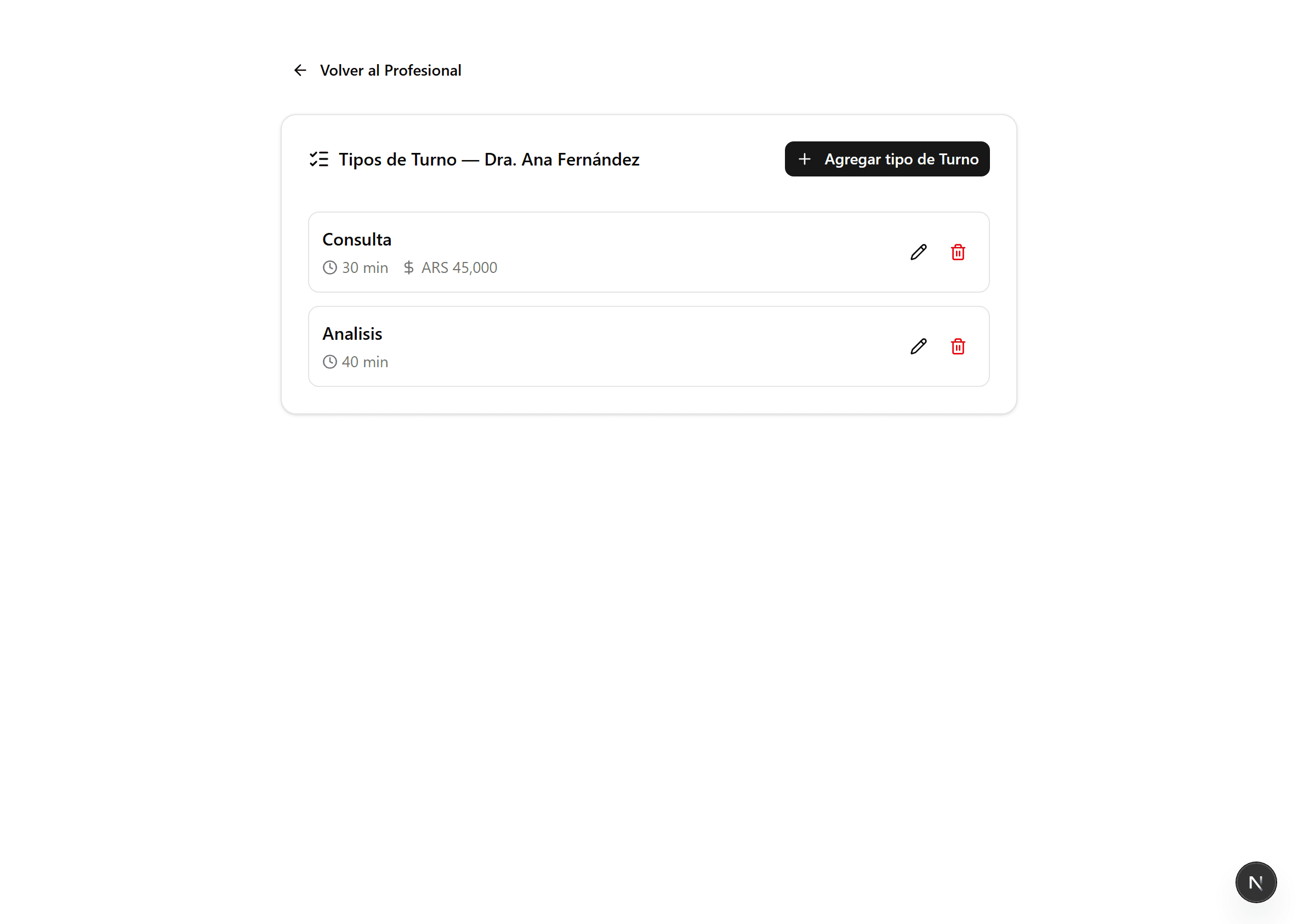
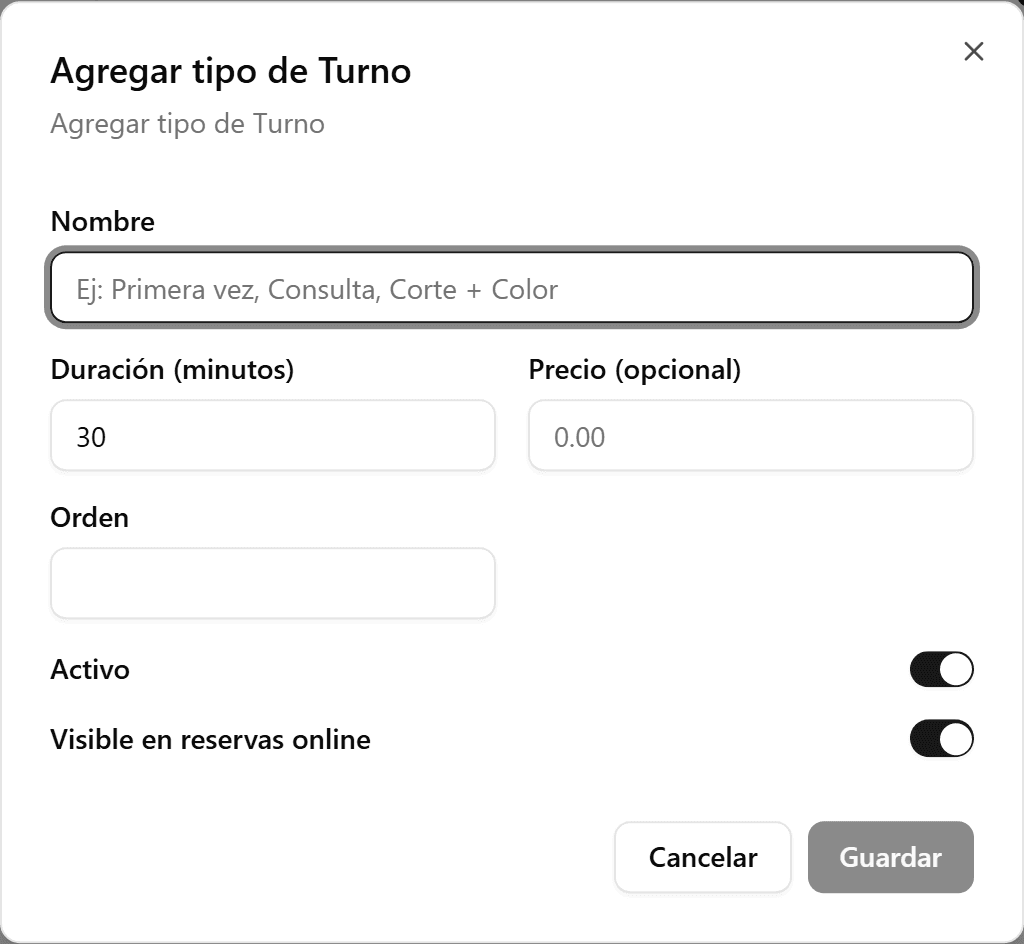
Hacé clic en «Agregar tipo de Turno». Cargá el nombre y la duración en minutos. La duración del tipo de turno define cuánto dura ese turno al reservarlo.
- 3
Definí visibilidad y orden
Usá «Activo» para habilitarlo o pausarlo, «Visible en reservas online» para que aparezca (o no) en la página pública, y «Orden» para ubicarlo en la lista. Hacé clic en «Guardar».

- 4
Editá o eliminá un tipo de turno
Usá el ícono del lápiz para modificar un tipo de turno y el de la papelera para eliminarlo. Los turnos ya reservados conservan el tipo con el que se agendaron.