
Back to guides
Create an overbook
- 1
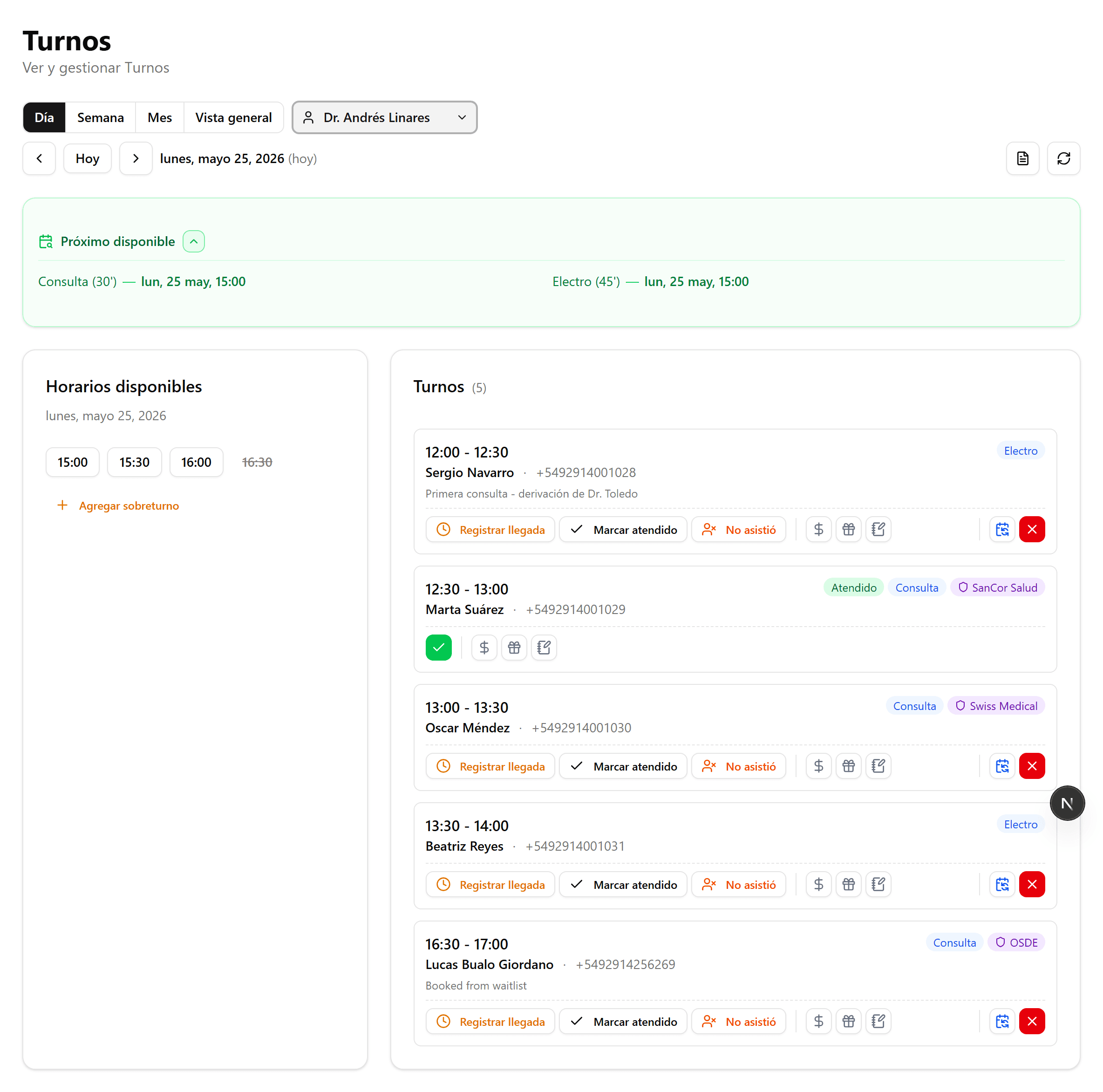
Find the day you want
In the Appointments agenda, pick the provider and navigate to the day where you want to add the overbook.
- 2
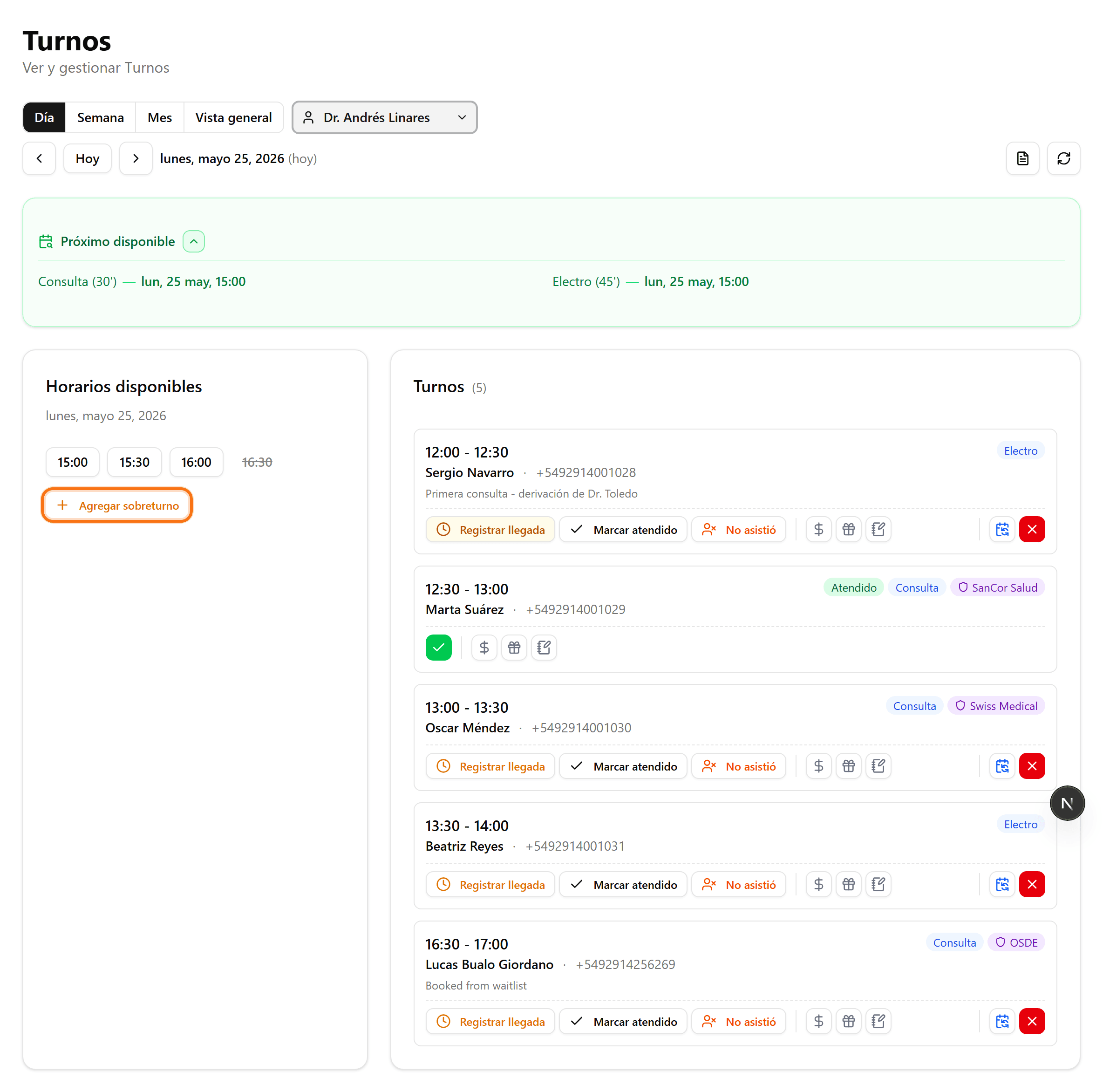
Click "Add overbook"
Below "Available slots", click "Add overbook".
- 3
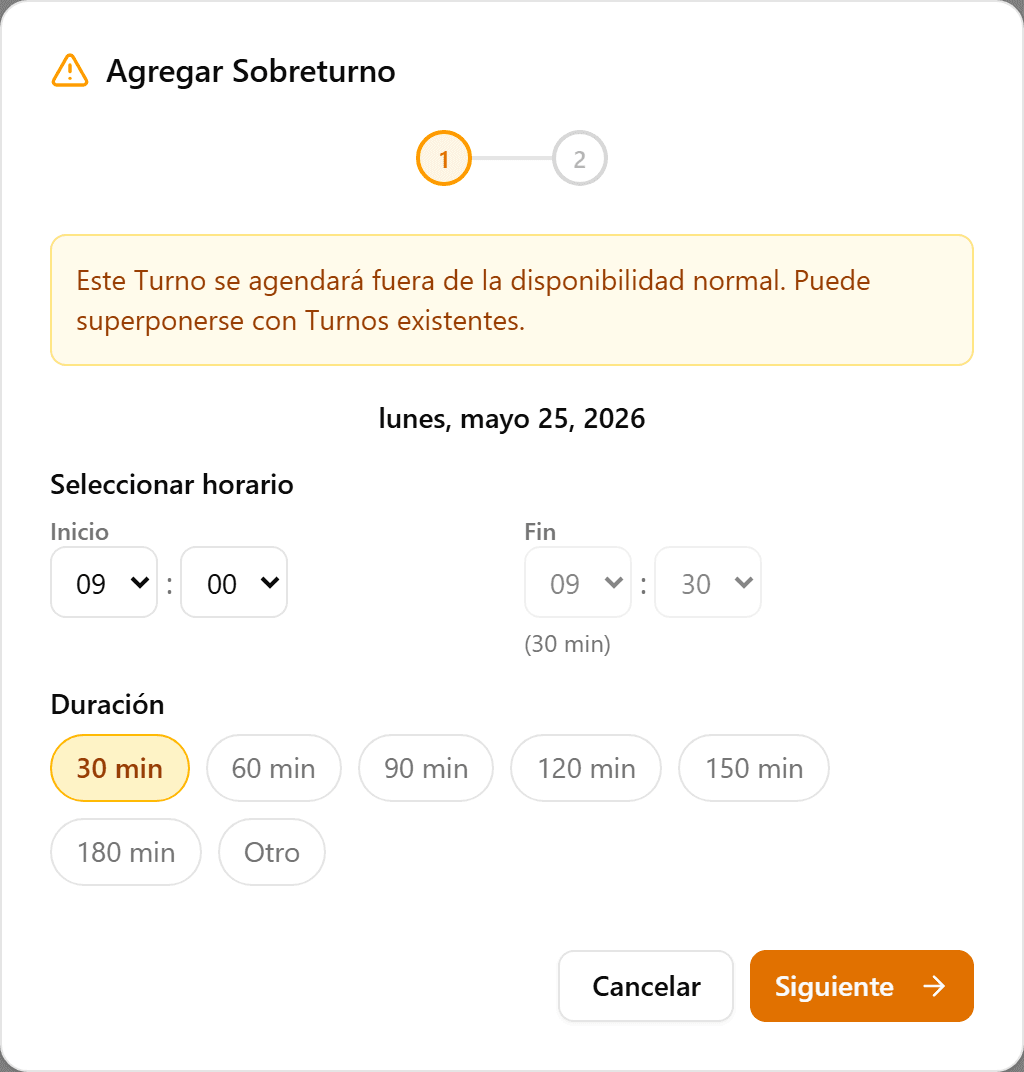
Choose the start time
The wizard opens. A notice reminds you the appointment is scheduled outside normal availability and may overlap. Pick the start time and duration; the end is computed automatically.
- 4
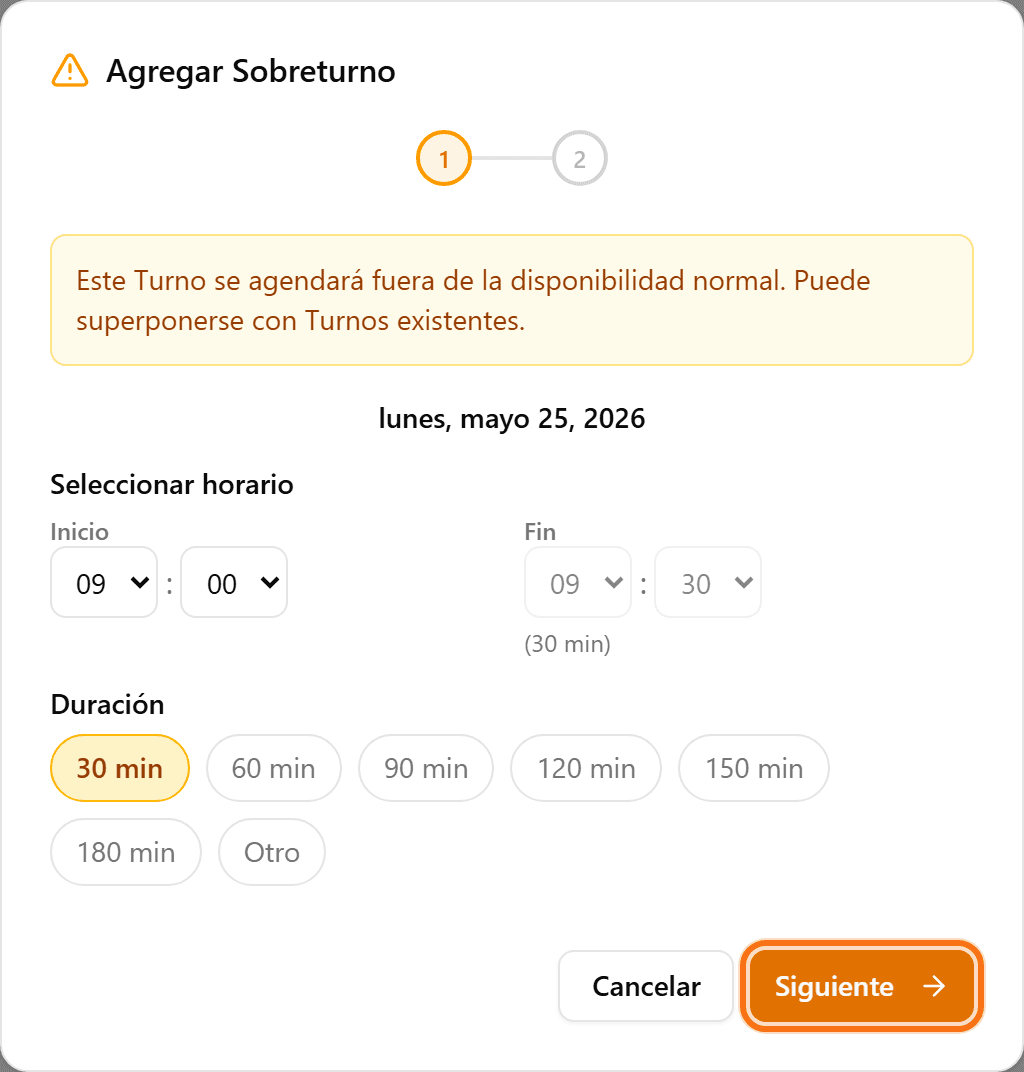
Click "Next"
Confirm the time to move on to the second step.
- 5
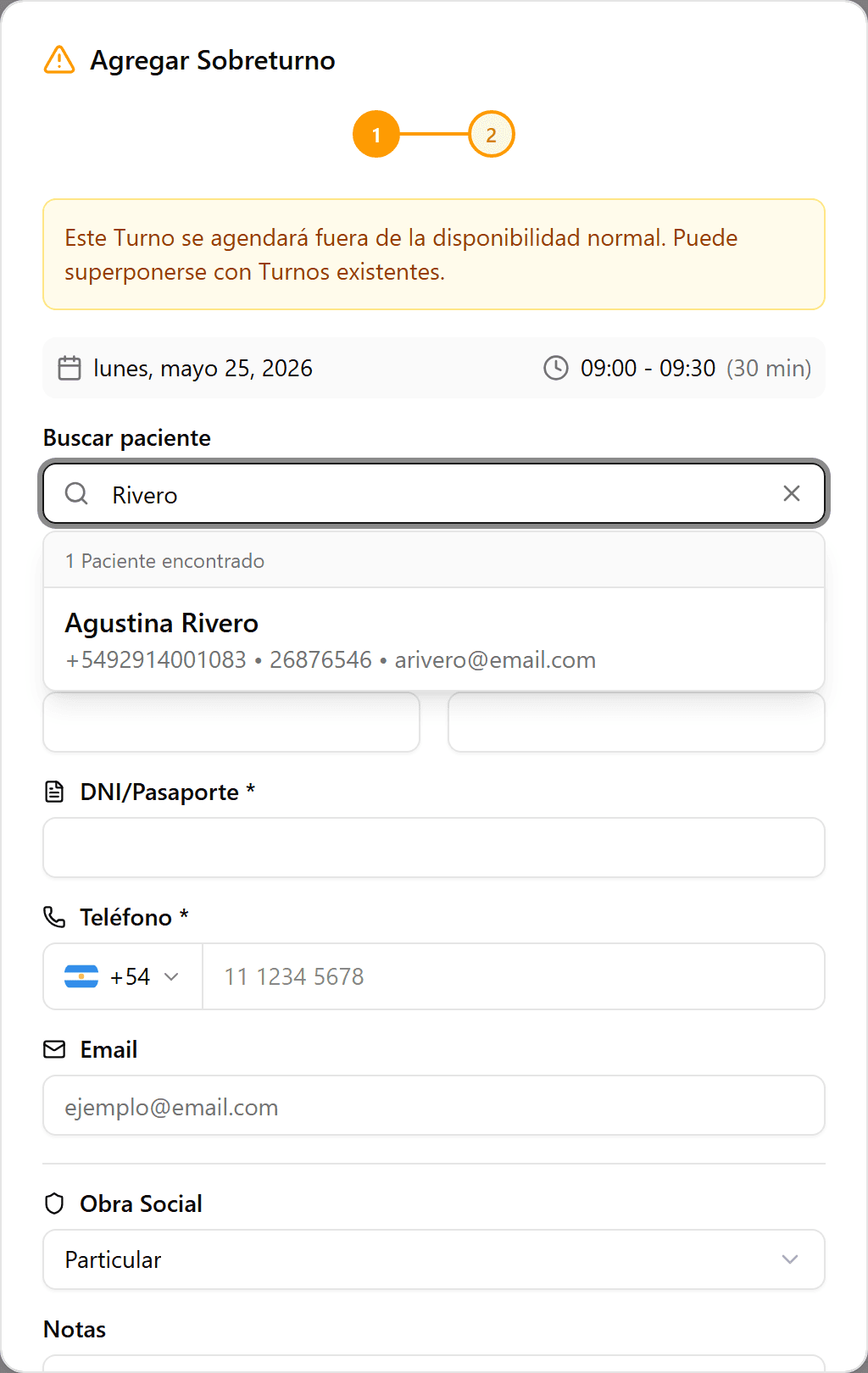
Search for a patient or create a new one
Search by name, phone or ID. If the patient does not exist, fill in the fields to create them on the spot.
- 6
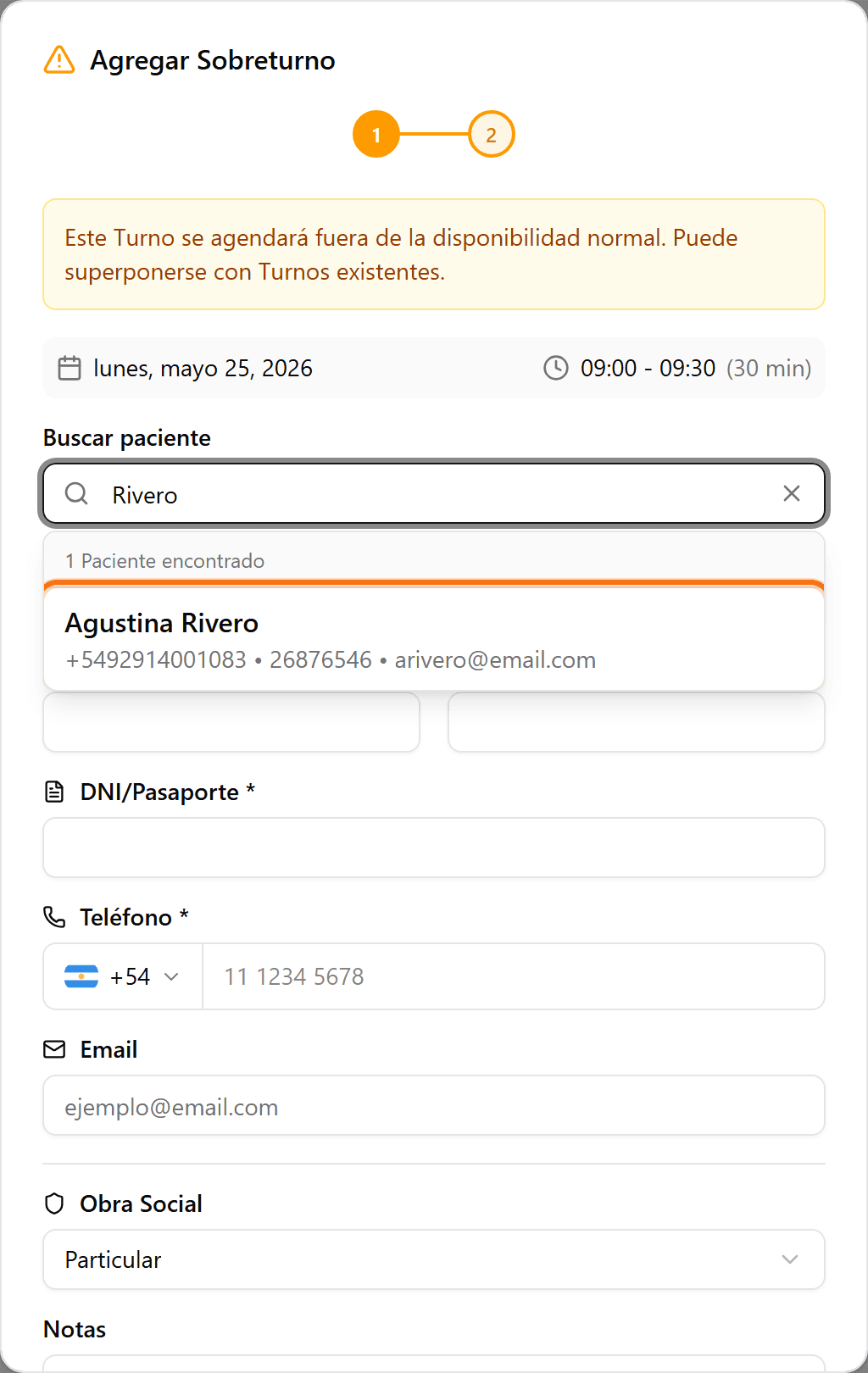
Select the patient
Click the patient in the results list.
- 7
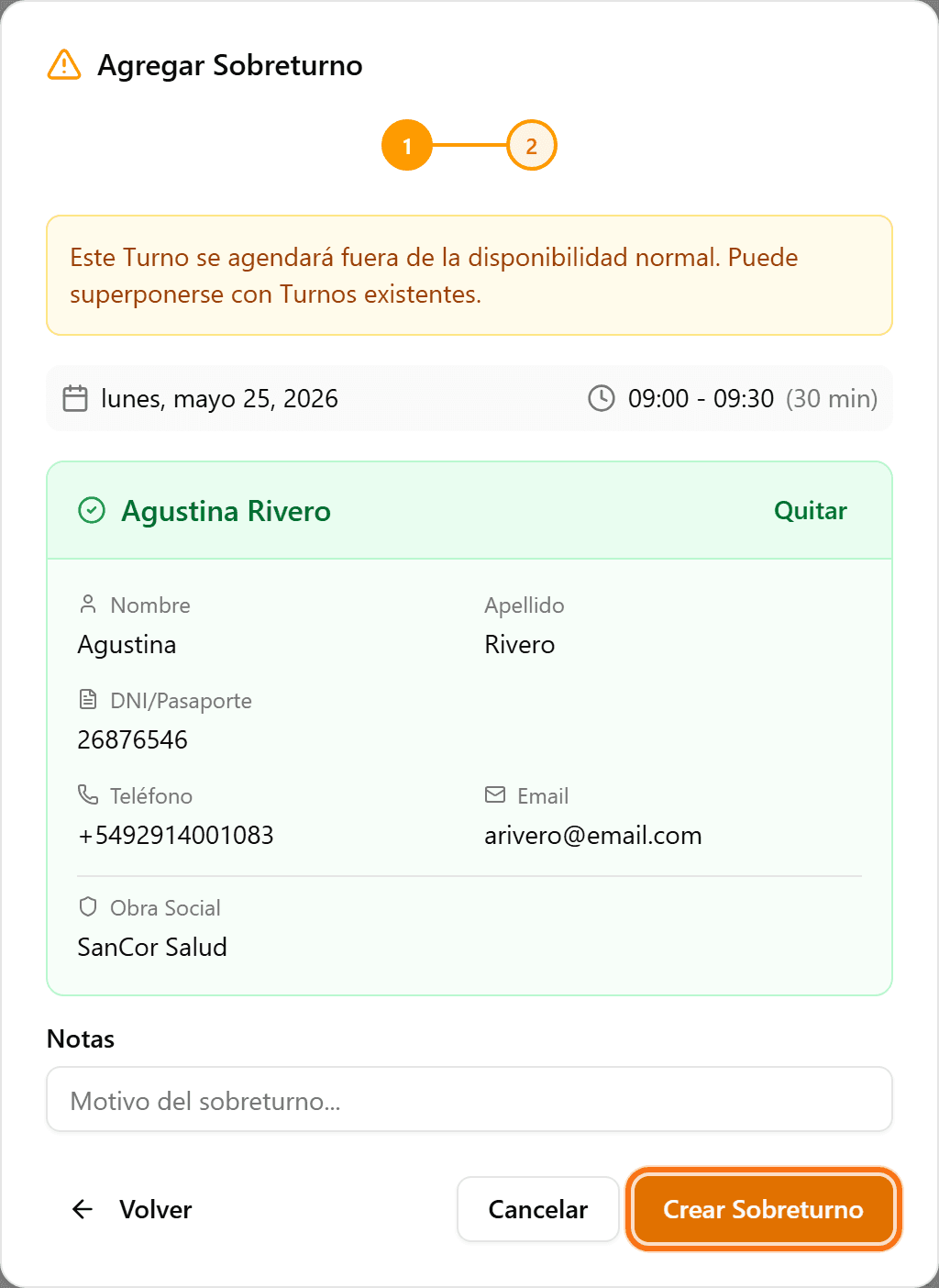
Click "Create Overbook"
Review the details and confirm with "Create Overbook".
- 8
Done
The overbook appears in the agenda with the "Overbooked" tag.
