Volver a las guías
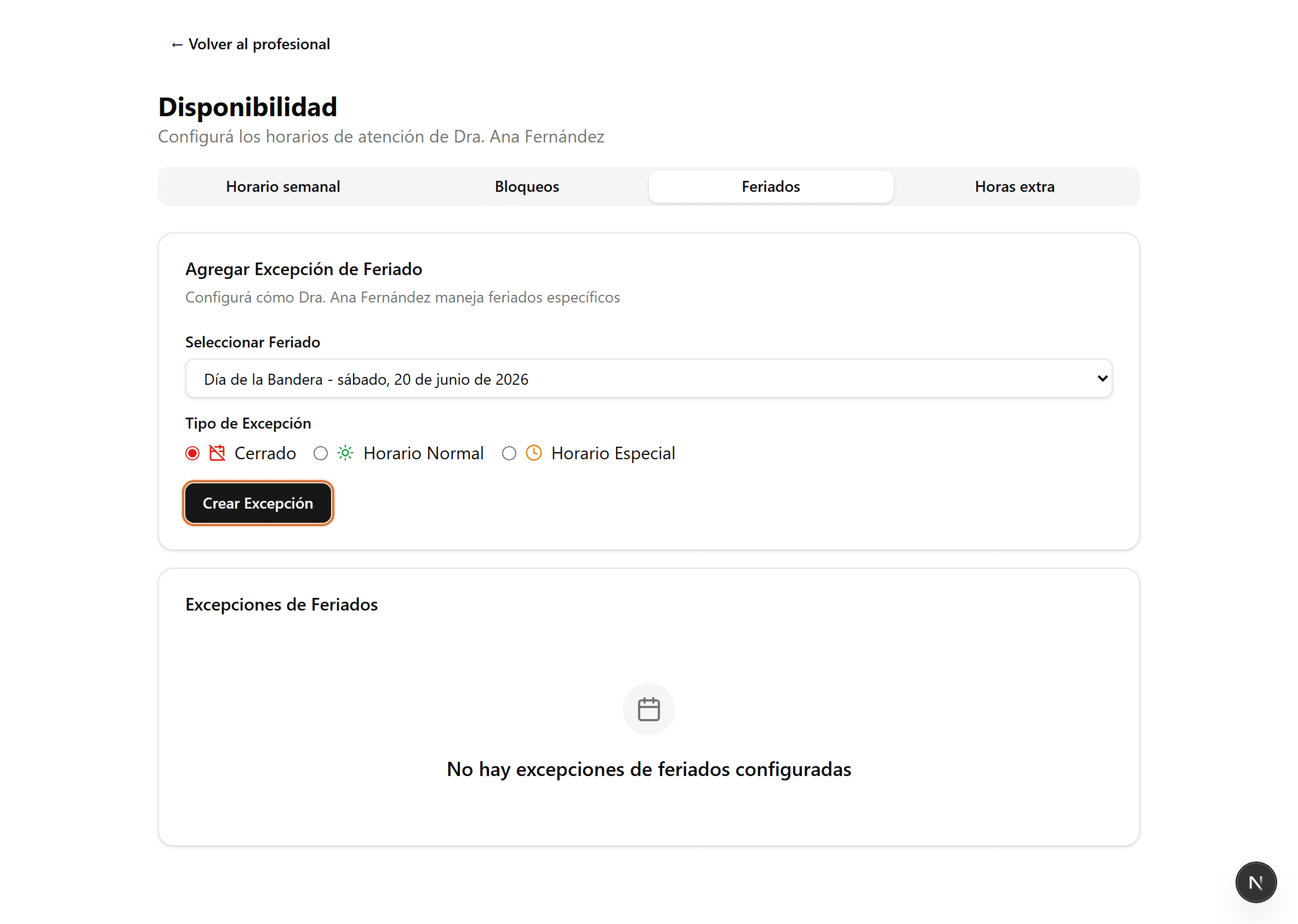
Atención en feriados por profesional
Esto solo hace falta cuando hay un feriado cargado para toda la organización pero ese profesional igual va a atender ese día. Para crear un feriado, seguí la guía Feriados de la organización.
- 1
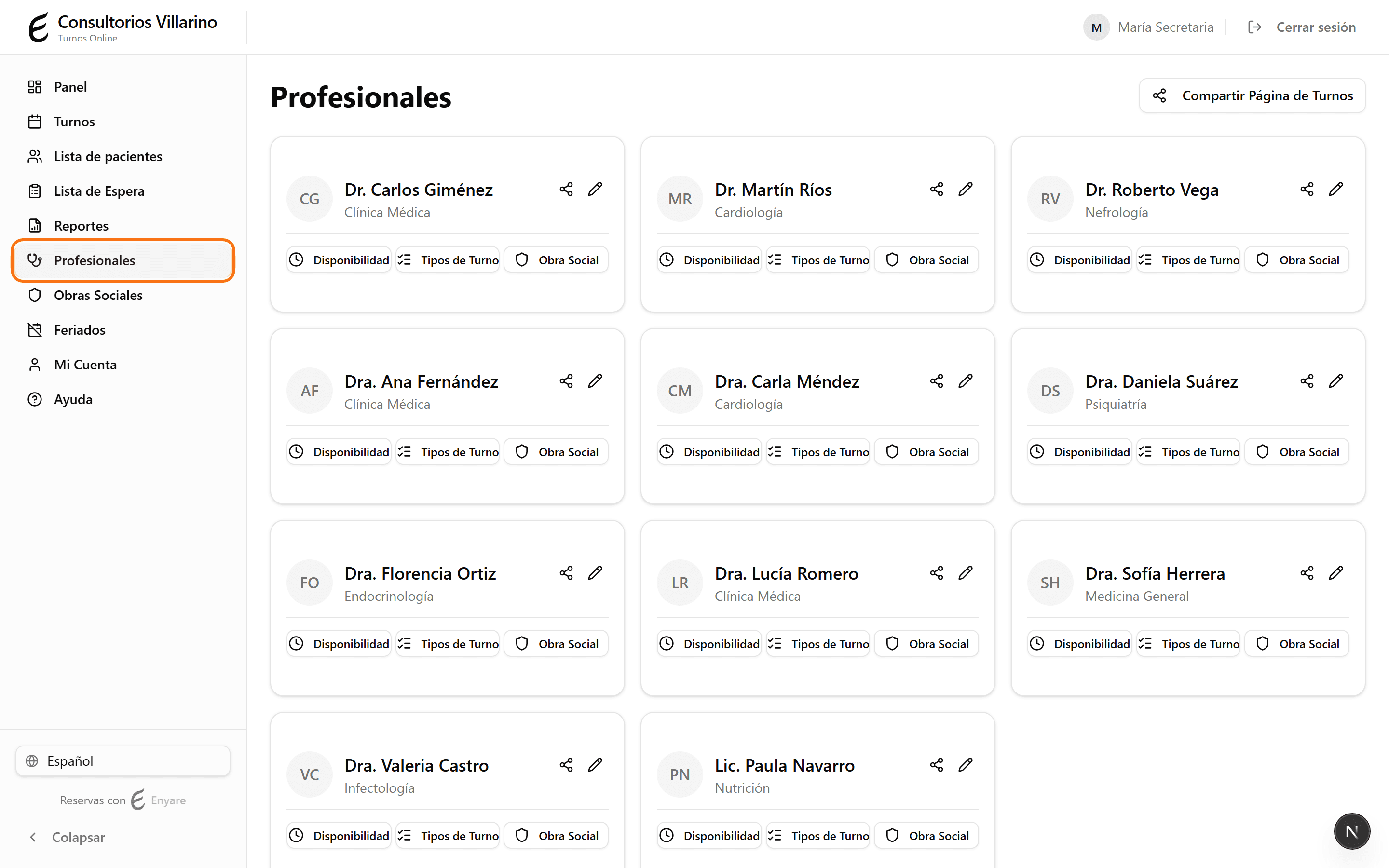
Abrí «Disponibilidad» y la pestaña «Feriados»
En el menú lateral, abrí «Profesionales», entrá al profesional, hacé clic en «Disponibilidad» y elegí la pestaña «Feriados».
- 2
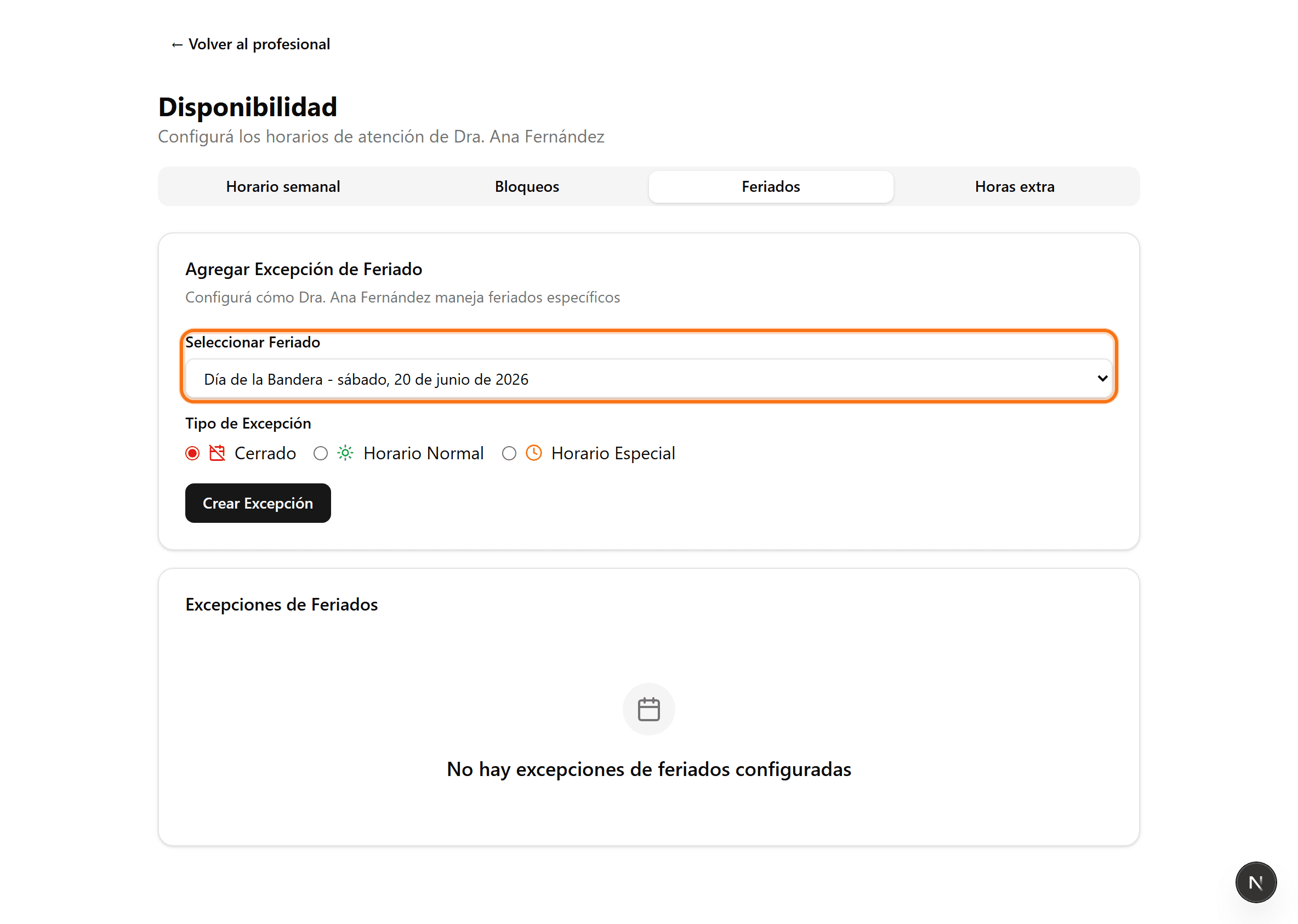
Elegí el feriado
En «Seleccionar Feriado», elegí uno de los próximos feriados del calendario. Solo aparecen los feriados futuros que todavía no tienen una excepción configurada.
- 3
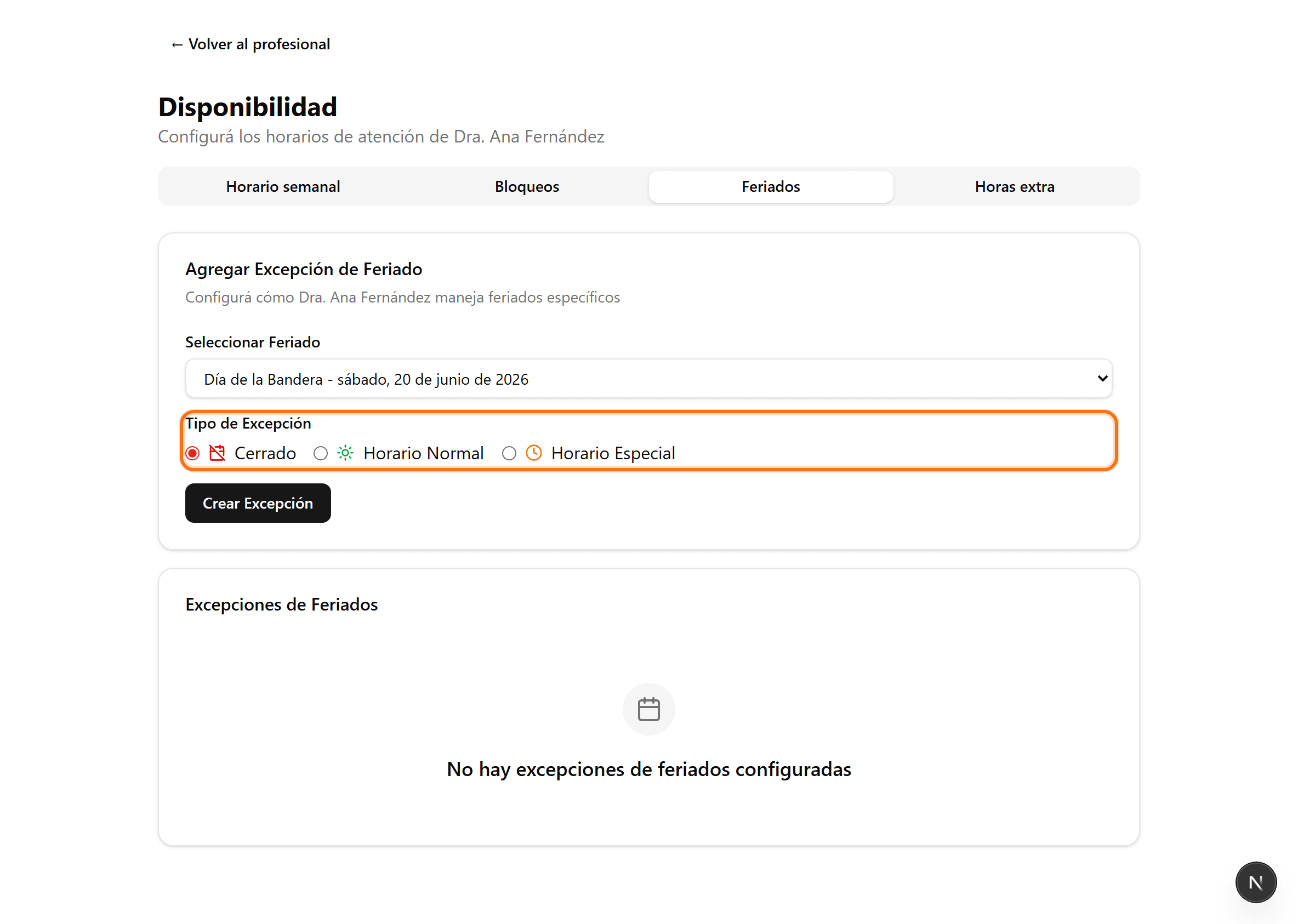
Elegí cómo atiende ese día
«Cerrado»: no atiende el feriado. «Horario Normal»: atiende con su horario habitual. «Horario Especial»: atiende en un rango distinto, donde elegís la hora de apertura y cierre.
- 4
Creá la excepción
Hacé clic en «Crear Excepción». Aparece en «Excepciones de Feriados» y podés eliminarla cuando quieras.