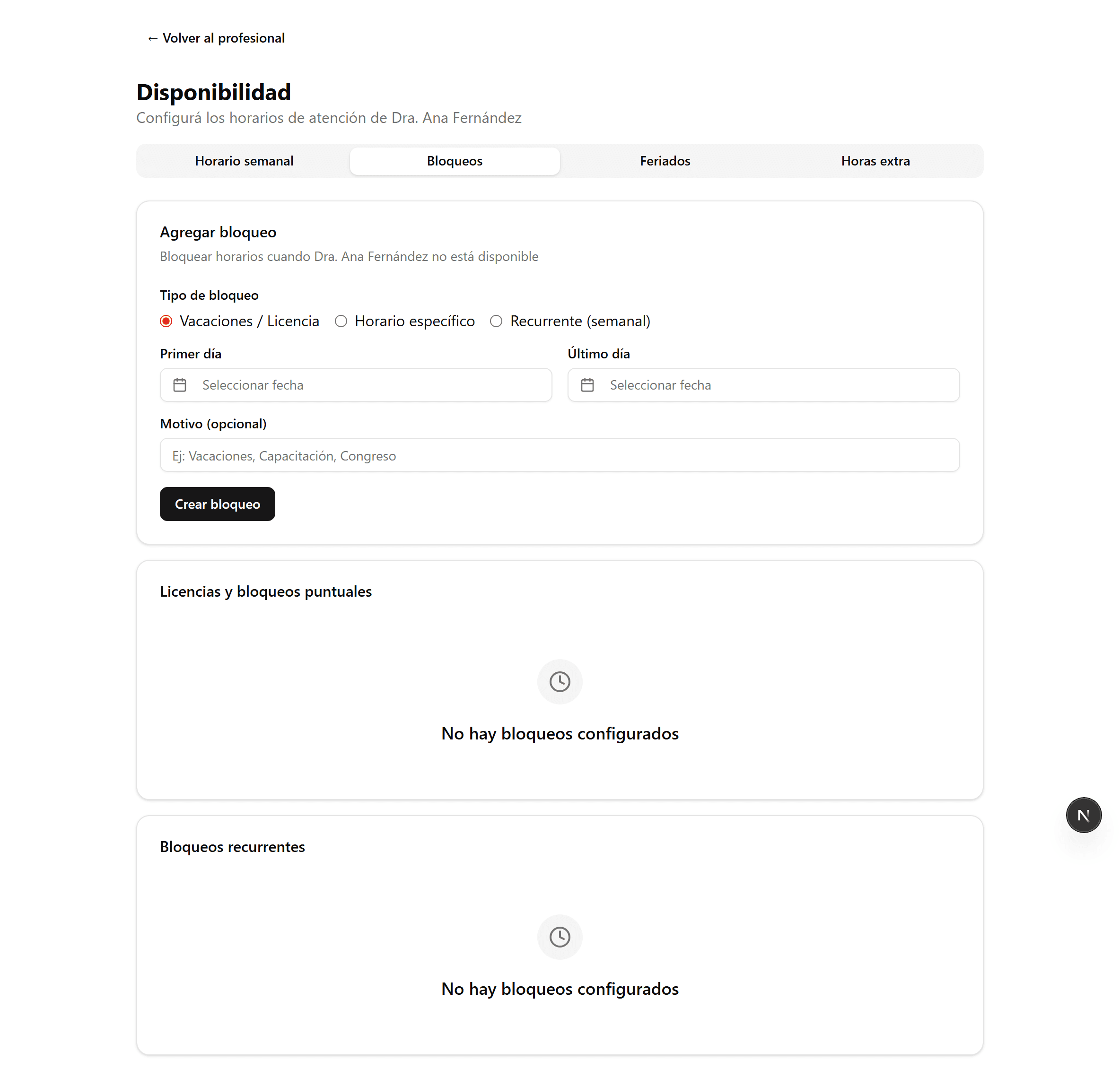
Vacaciones, licencias y bloqueos
Ver el video
- 1
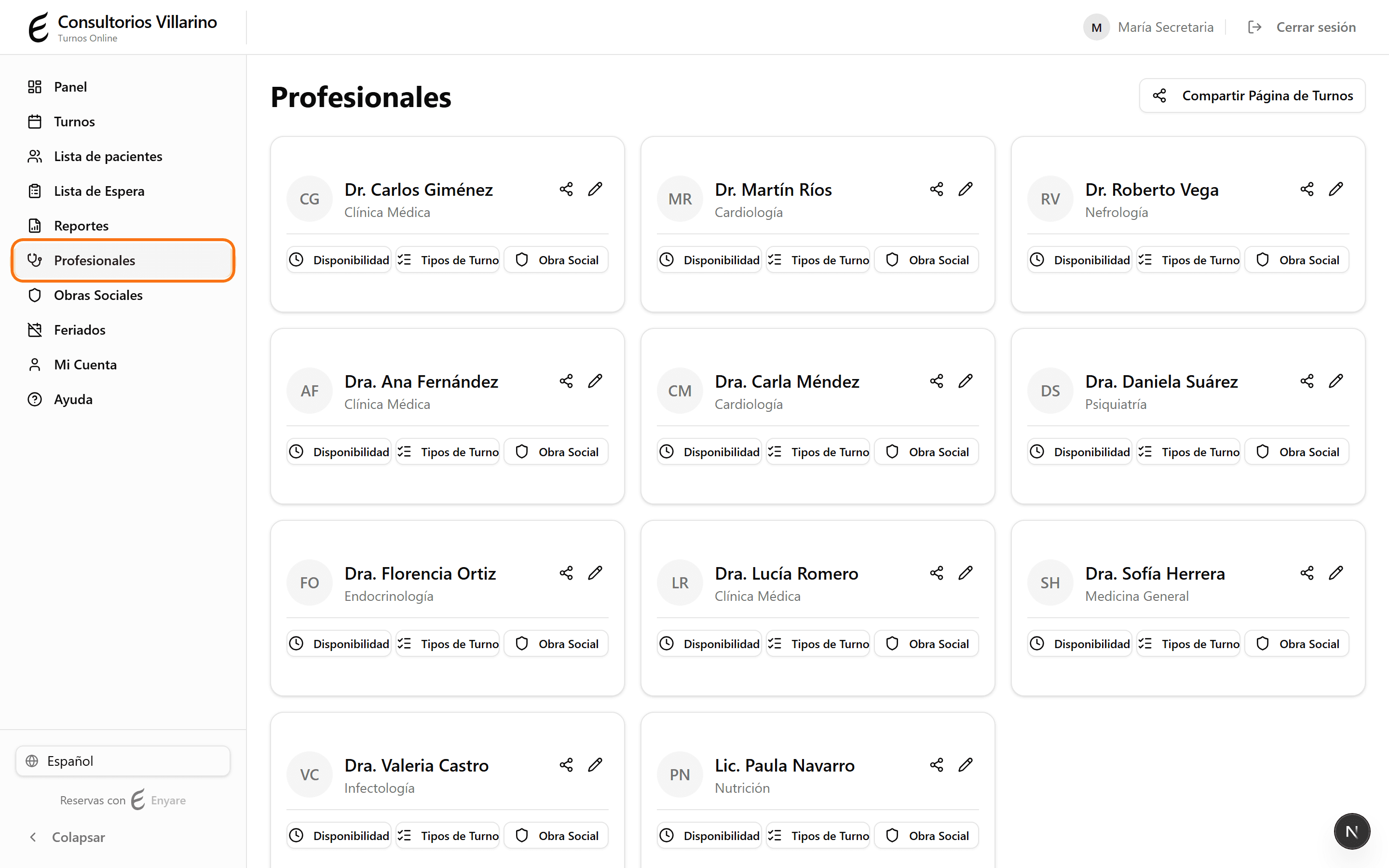
Abrí «Disponibilidad» y la pestaña «Bloqueos»
En el menú lateral, abrí «Profesionales», entrá al profesional, hacé clic en «Disponibilidad» y elegí la pestaña «Bloqueos».
- 2
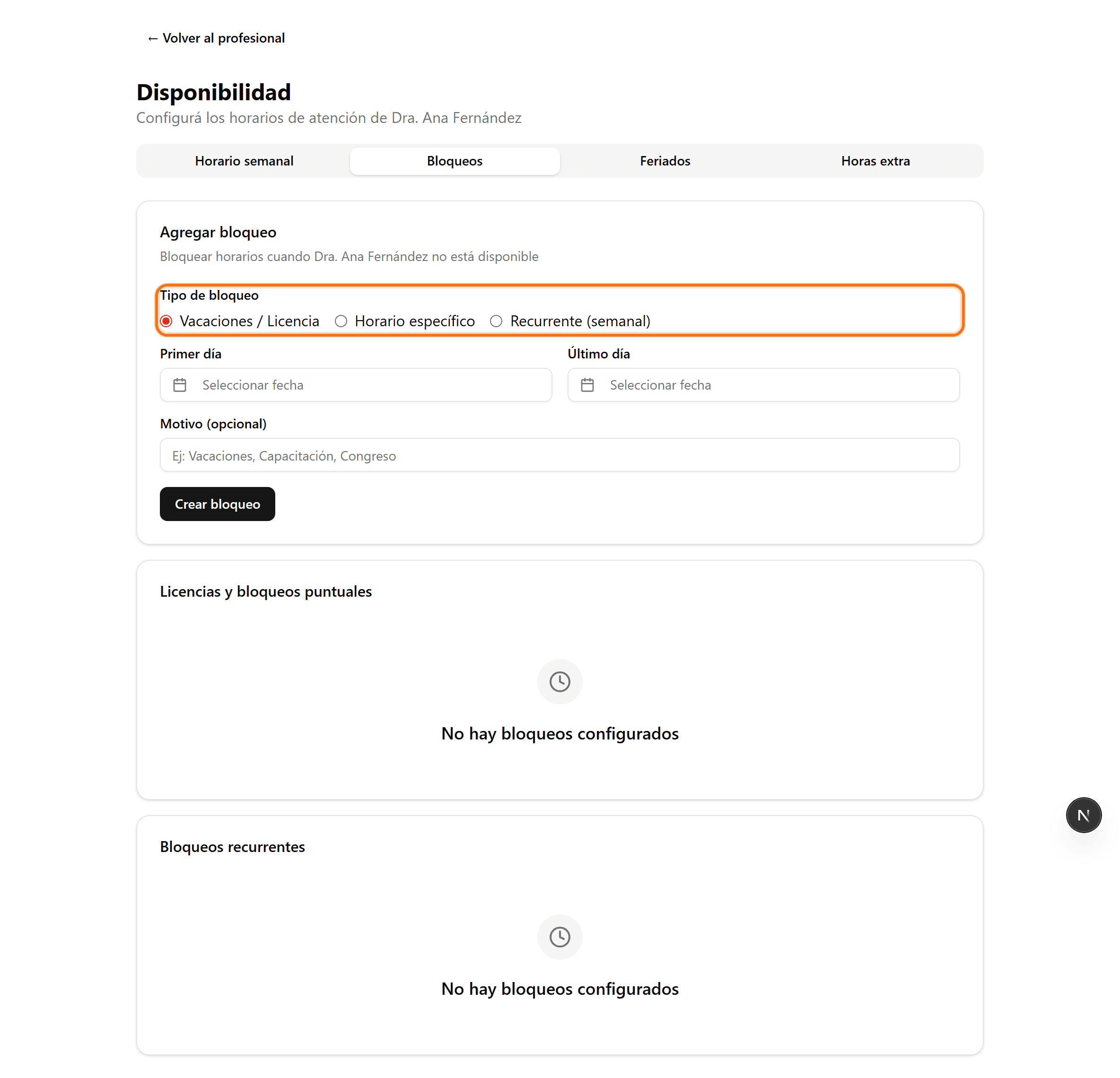
Elegí el tipo de bloqueo
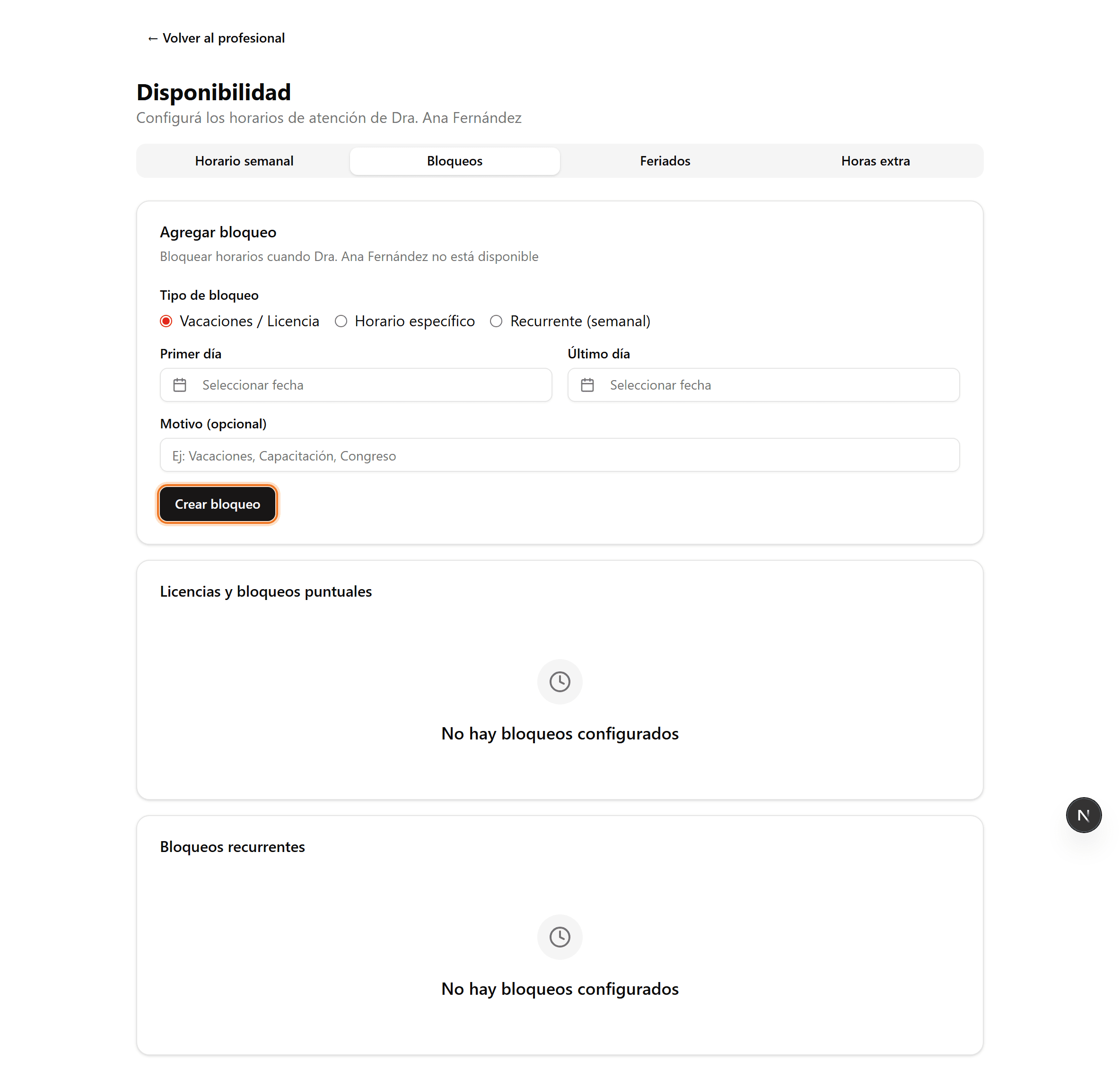
«Vacaciones / Licencia»: bloquea uno o varios días completos. «Horario específico»: bloquea un rango de fecha y hora puntual. «Recurrente (semanal)»: bloquea el mismo tramo todas las semanas (por ejemplo, los martes de 12 a 14).
- 3
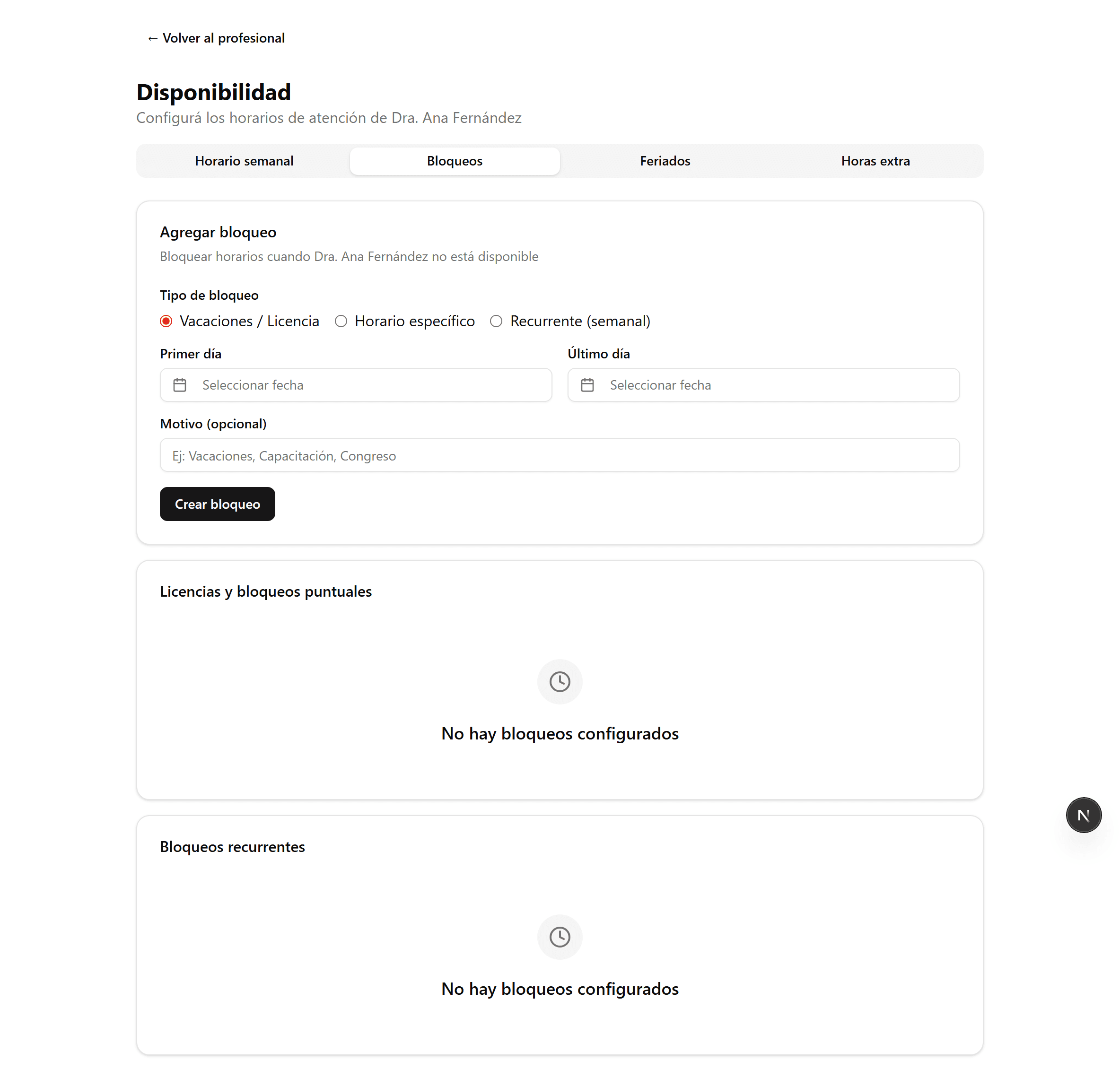
Cargá las fechas u horas
Según el tipo: para vacaciones, el primer y último día; para horario específico, fecha y hora de inicio y fin; para recurrente, el día de la semana y el rango horario. Podés agregar un motivo (Vacaciones, Congreso, etc.).
- 4
Creá el bloqueo
Hacé clic en «Crear bloqueo». Esos turnos dejan de ofrecerse al instante en la reserva online.
- 5
Quedan listados
Los bloqueos aparecen abajo, separados en «Licencias y bloqueos puntuales» y «Bloqueos recurrentes». Podés eliminarlos cuando quieras con el botón «Eliminar».