Volver a las guías
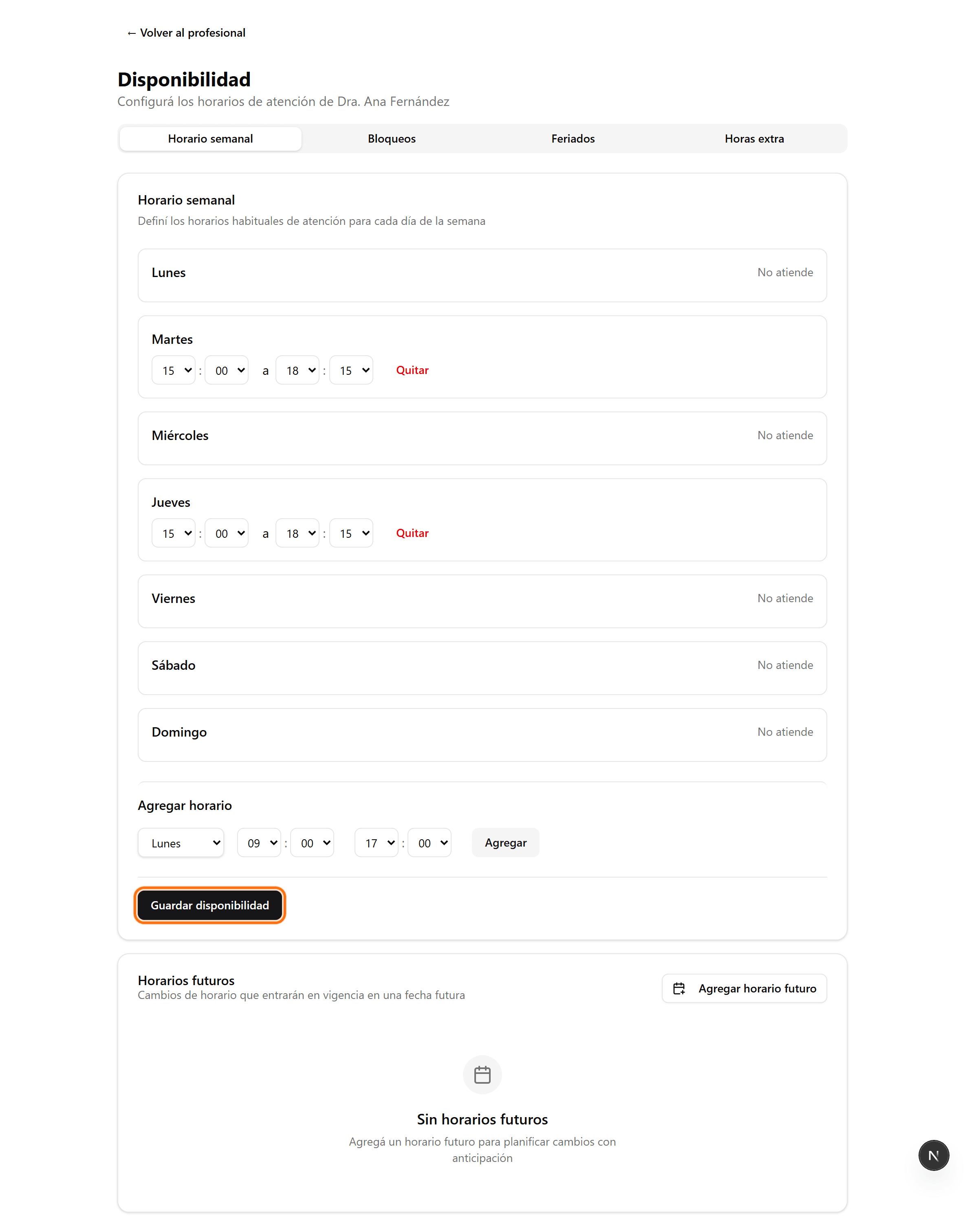
Horarios de atención de un profesional
Ver el video
- 1
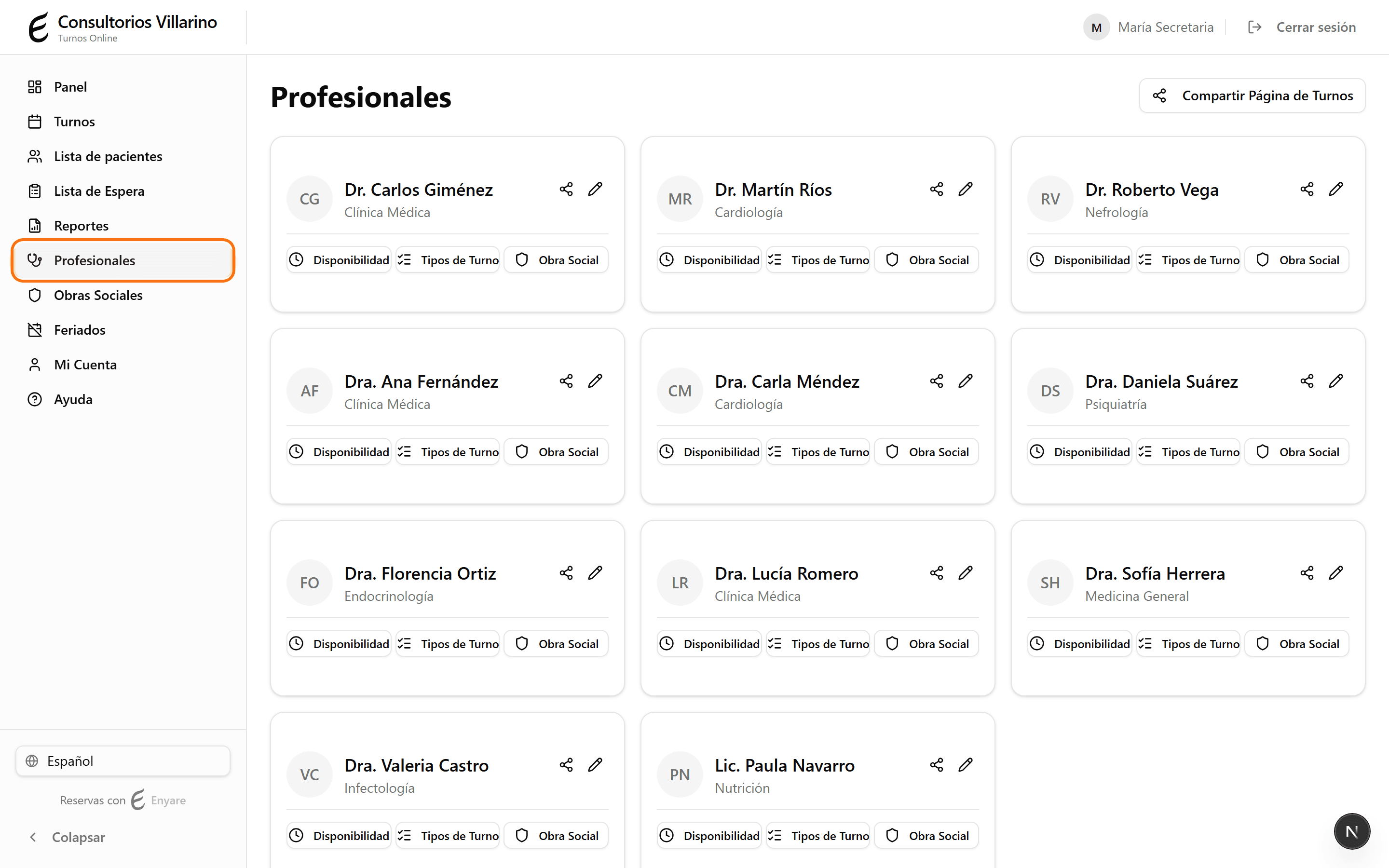
Entrá a «Profesionales»
En el menú lateral, abrí «Profesionales» y hacé clic en el profesional cuyos horarios querés cambiar.
- 2
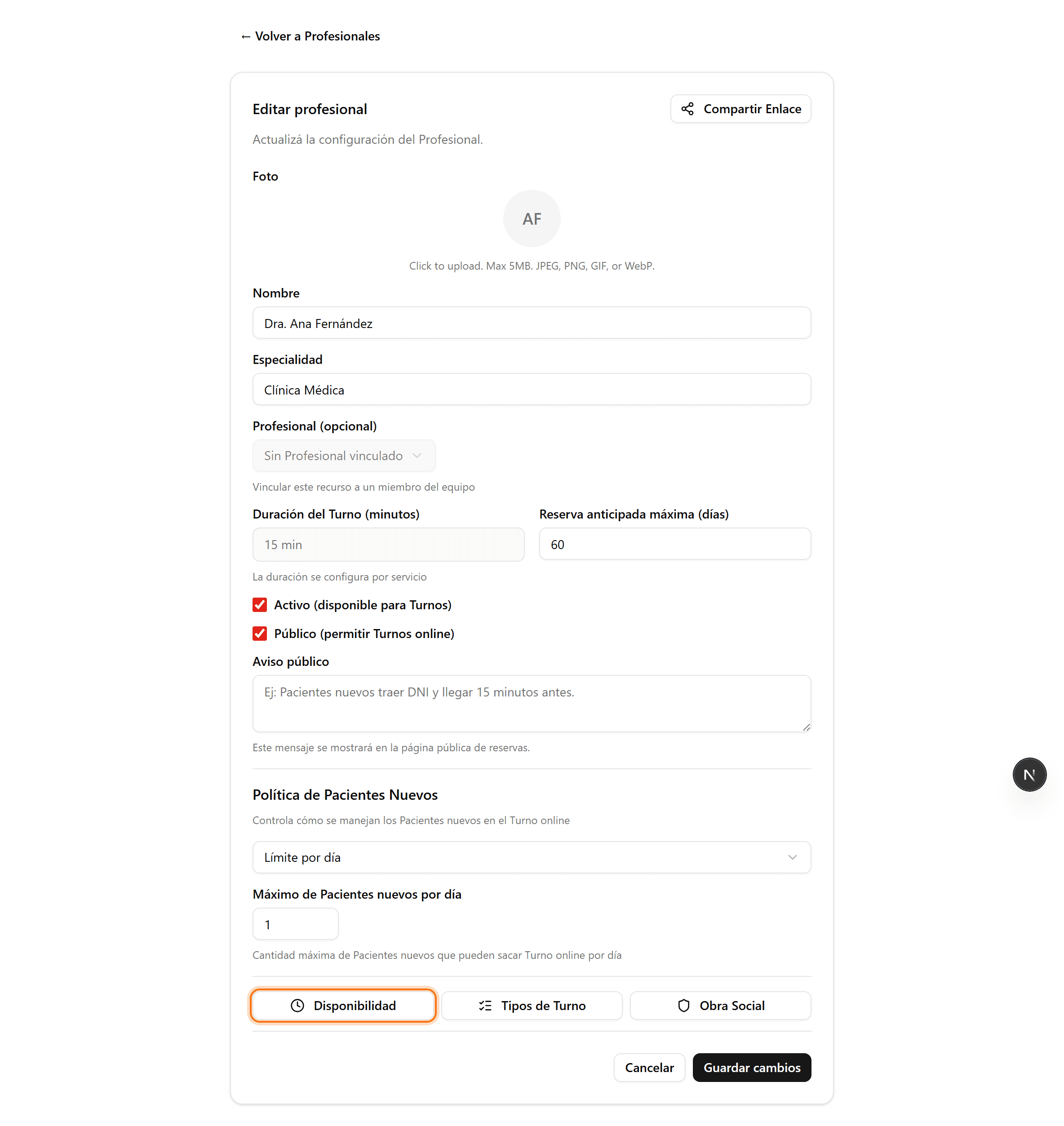
Abrí «Disponibilidad»
Dentro de la ficha del profesional, hacé clic en el botón «Disponibilidad». Vas a entrar a la pestaña «Horario semanal».
- 3
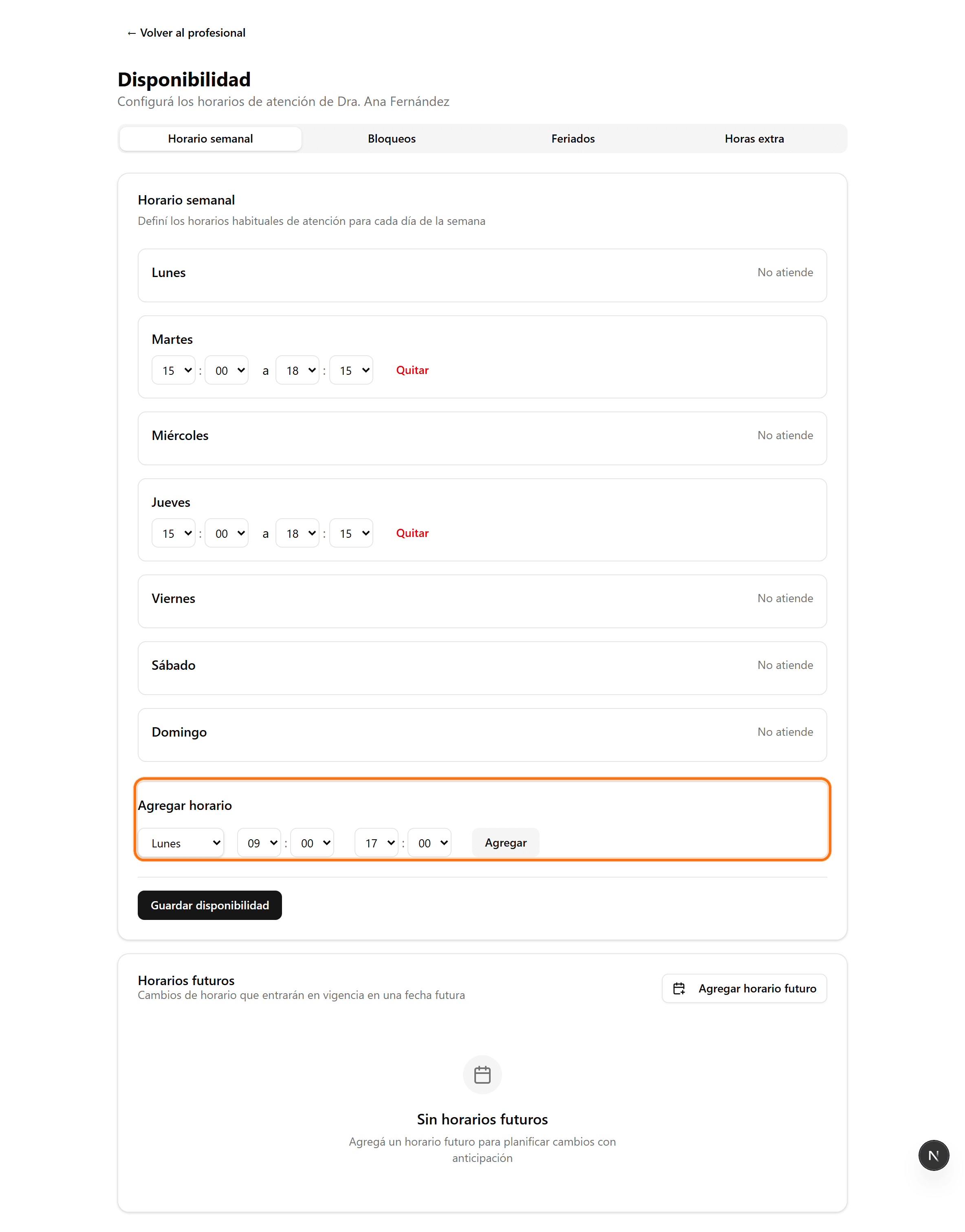
Agregá un horario
En «Agregar horario», elegí el día de la semana y las horas de inicio y fin. Hacé clic en «Agregar» para sumarlo al día. Podés agregar varios tramos por día (por ejemplo mañana y tarde).
- 4
Guardá los cambios
Cuando termines, hacé clic en «Guardar disponibilidad». Los turnos se generan automáticamente según estos horarios.